


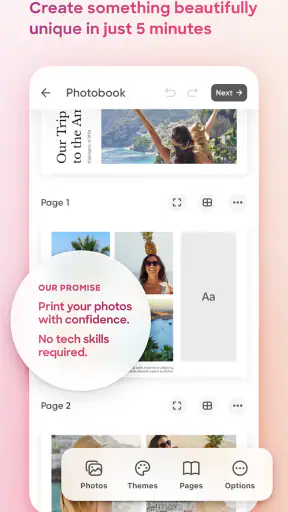
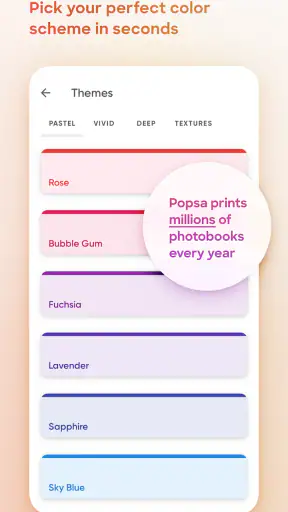
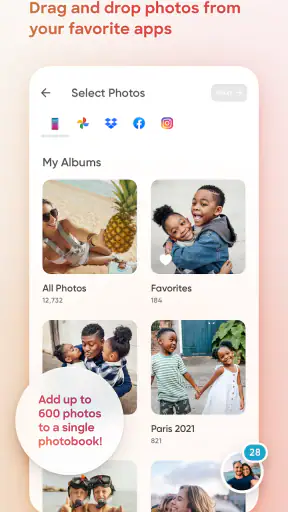
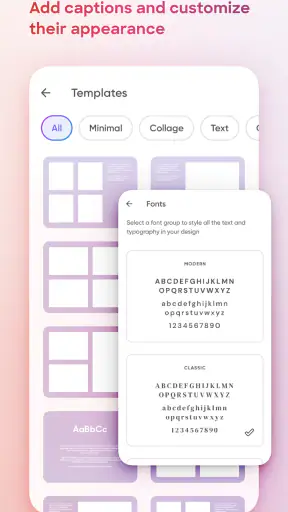
I approached Popsa as a practical way to turn phone photos into physical keepsakes, rather than as another gallery or editing tool. The app sits in the photography category and is made by Popsa, with a free download and an Everyone age rating. Its main appeal is simple: choose images on a phone, arrange them into a product, and place an order without moving everything to a computer first.
That simplicity is useful, but it can also hide the points where people become confused. A photo-printing app is only enjoyable when the image selection, layout, preview, and checkout stages behave as expected. In my experience, the most important part of using this app is not tapping quickly through the design screens; it is preparing the right photos and checking the preview carefully before committing to a printed item.
What using Popsa feels like in everyday life
The app offers several kinds of physical products, including photobooks, photo boxes, calendars, and prints. That makes it more flexible than a basic print-ordering tool, especially if you want to create something for a birthday, a family visit, a holiday memory, or a small personal project. I can imagine opening it after a weekend away, selecting the best pictures, and building a compact album while the memories are still fresh.
The strongest part of the experience is the direct path from phone library to finished product. I do not need to first export pictures, rename files, or assemble a separate document in a desktop publishing program. For someone who keeps most photos on a smartphone, that removes a lot of unnecessary work. The trade-off is that a phone screen is not the ideal place for detailed page design, so the app rewards a clear, organized workflow.
Its store summary promises that users can create these items in just a few minutes. I would treat that as a best-case target rather than a guarantee for every project. A small order with already-selected photos can move quickly. A larger photobook, a calendar requiring careful image choices, or an order where you repeatedly adjust layouts naturally takes longer. The speed is real when the decisions are easy; it does not replace the time needed to choose meaningful images.
The app has built a substantial audience, with an average rating of 4.7 from around 44 thousand ratings and more than 5 million installs. Those figures suggest that the basic idea works for many people, but they should not be mistaken for a promise that every phone, image library, or order will feel frictionless. Printing involves both software and physical production, so the quality of the final result depends on more than the interface alone.
Where people usually get stuck
The first common obstacle is not necessarily a technical failure. It is the difference between having many photos and having a usable project. A phone library may contain screenshots, duplicates, portraits with awkward framing, and images saved from messaging apps. If I select pictures directly without first narrowing them down, the design stage becomes slow and indecisive.
I get better results by creating a temporary album in my phone’s gallery before opening Popsa. I remove duplicates, keep the strongest version of similar shots, and decide whether the project should tell a story or simply collect favorite images. For a trip, I might sort pictures by day or location. For a family gift, I would group them by person or occasion. This small preparation step is more valuable than trying to solve every choice inside the ordering screen.
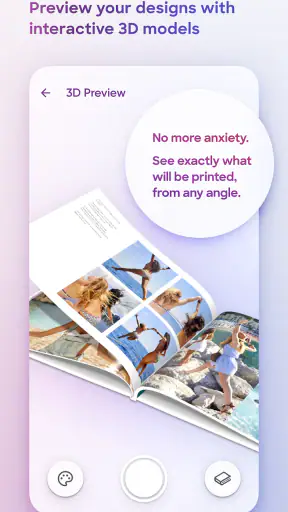
Another sticking point is the preview. A photo can look excellent on a bright phone display and still be a poor candidate for a printed layout if the subject sits too close to an edge or if the image is dark. Automatic arrangements are convenient, but I would never assume they preserve the exact framing I had in mind. I check faces, hands, text, and important background details before moving on.
Users can also mistake a slow image-loading stage for a broken order. Large libraries, weak connections, or a phone that is busy with other tasks may make the selection process feel unresponsive. My first response would be to wait briefly, avoid repeatedly tapping the same control, and confirm whether the image actually appeared before starting the action again. Repeated taps can create confusion about whether something was added once or several times.
Setup checks that prevent avoidable trouble
Popsa runs on Android starting with version 7.0, which covers a wide range of devices. Even when a phone meets that requirement, I would still check the operating system, available storage, and connection before beginning a large project. A nearly full phone can behave unpredictably when an app needs to load or temporarily process many photos.
I also recommend updating the app before starting a time-sensitive gift. The current version is 6.7.0, and using the current release reduces the chance that an older installation is responsible for a screen behaving differently from what you expect. If an update is available, I would install it while connected to a reliable network rather than waiting until the moment an order must be completed.
Photo access is another practical checkpoint. If some images do not appear, I first look at the phone’s app permissions and confirm that Popsa can access the relevant pictures. On newer operating systems, access may be limited to selected images rather than the entire library. That can be useful for privacy, but it also means a photo chosen later may not be visible until access is adjusted.
I would not begin with a complicated project while testing the setup. A small group of representative images is a better check: one bright outdoor photo, one portrait, one image with fine detail, and perhaps one picture received through a messaging service. If all of them appear correctly and the preview behaves normally, I have more confidence before investing time in a complete album.
Connection quality matters during both image selection and ordering. If the app seems stuck, I check whether other apps can load content, switch between a stable Wi-Fi connection and mobile data when appropriate, and avoid moving around while an order is being submitted. I would also disable any battery-saving mode that aggressively pauses background activity if the phone is known to restrict apps during longer tasks.
A safer workflow from selection to preview
My preferred process begins outside the app with a short list of photos. I then open Popsa, choose the type of product that matches the occasion, and add images in a deliberate order. I avoid selecting every possible picture simply because there is room. A smaller collection of clear, emotionally connected photos usually feels more intentional than a crowded sequence of near-identical shots.
For a photobook, I think in page groups rather than individual images. I might place an establishing landscape first, follow it with people and details, and finish with a memorable closing image. This approach makes layout adjustments easier because I already know which photos are essential and which can be removed if the design feels cramped.
For a calendar, I would choose images with enough visual breathing space. A busy photograph may look attractive in a gallery but become difficult to read when combined with calendar information. I also check whether a face or important object could be covered by the layout. Calendar projects deserve more preview time than a quick print because each page has a separate composition.
For prints, I pay particular attention to cropping. A phone photo may use a different shape from the selected print format, so the full image may not fit without adjustment. If the crop cuts through a face, sign, or key object, I would choose another image or reposition it rather than hoping the final result will look acceptable. This is one of the most important checks in the entire workflow.
Before ordering, I review the project from beginning to end instead of checking only the first few pages. I look for duplicates, blank-looking spaces, accidental selections, and images that appear much darker than the rest. I also check spelling wherever I have entered captions or personal text. A polished preview is not merely cosmetic; it is the last practical opportunity to catch an error.
How I recover when a project goes wrong
If the app closes or the project appears to lose progress, I would first reopen it and look for the project before rebuilding everything. I avoid immediately deleting or replacing anything, because the first recovery attempt should be about finding the existing work. If the project is present, I continue with a small edit and save or advance normally to see whether the issue was temporary.
When images refuse to load, I separate the problem into two questions: are the photos missing from the phone’s accessible library, or are they visible but failing inside the project? If they are absent from the selection screen, I check permissions, album location, and whether the files are stored only in a cloud service. If they are visible but not rendering in the design, I try a different image and a stable connection before assuming the whole project is damaged.
A useful recovery tactic is to duplicate the decision-making rather than the entire project. I write down the chosen image order or keep the temporary phone album intact, then reopen the app and recreate only the affected section. That is less frustrating than starting from an unorganized camera roll, and it protects the story I intended to tell even if a particular screen needs to be rebuilt.
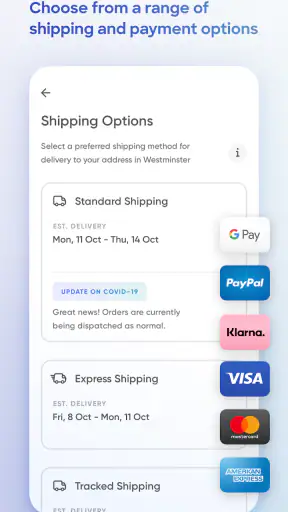
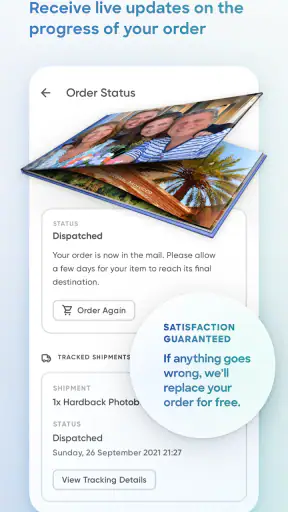
If checkout fails, I would not repeatedly submit the order without checking whether the first attempt was accepted. I would look for an order confirmation or status inside the app and check the payment account before trying again. This is a general precaution, but it matters because repeated attempts can make it unclear whether one or multiple orders were created.
When a preview looks wrong, I treat it as a design problem first. I replace low-quality or awkwardly cropped photos, simplify a crowded page, and inspect the same image in another arrangement. If the problem follows one particular file, that file may be unusually large, damaged, or encoded in a way the phone handles poorly. Re-saving a copy through the phone’s own photo editor can sometimes create a cleaner source file, though I would keep the original untouched.
When the app is not the cause
Not every disappointing print points to Popsa. Phone screens often use strong brightness and contrast, making shadows appear lighter and colors more vivid than they may be on paper. I therefore judge the source image on more than a quick glance. If a photo is already very dark, heavily filtered, or blurry when viewed at full size, changing the ordering app will not restore detail that was never captured.
Cloud-only photos can also create confusion. A picture may be visible as a thumbnail in a gallery while the full-resolution file still needs to download. If the app receives only a preview or cannot access the original at that moment, the issue may come from storage synchronization rather than the printing workflow. I make sure important images are available locally before selecting them for a time-sensitive project.
Cropping is another area where expectations matter. Different products and layouts may require different proportions, and a camera image rarely matches every physical format perfectly. I would rather accept a little empty space or choose a better-composed photo than force an aggressive crop that removes the subject. The app can help arrange an image, but it cannot make every original framing suitable for every product.
There is also a difference between a fast mobile workflow and professional design control. Compared with desktop publishing software, Popsa is more approachable for a quick personal album, but I would not choose it when I need exact typography, advanced color management, complex page grids, or precise control over every element. A specialist design program is better for formal portfolios, client work, or projects where the layout itself is the main creative product.
On the other hand, traditional photo kiosks and manual online print services can be less convenient for a phone-first user. They may offer more individual control over paper choices or file preparation, but they also require more decisions and often more steps between the camera roll and the order. Popsa makes more sense when convenience and a finished keepsake matter more than complete production control.
Who will get the most from it
I think the app is especially suitable for people who take many smartphone photos but rarely print them. It turns a neglected camera roll into something tangible without demanding design experience. It also suits gift makers who want a personal result but do not want to learn desktop layout software first.
A realistic use case would be a parent preparing a small family collection after a school year. They could create a dedicated album, remove duplicates, select a few meaningful moments, and review every page in one sitting. The important habit would be to make the photo selection before opening the project, then reserve enough time for cropping and final inspection rather than assuming the first automatic arrangement is finished.
It is also useful for travelers who want a physical reminder without waiting months. I would select a coherent set of images while the trip is still easy to remember, add them in rough chronological order, and use the preview to remove repetitive scenes. The result would feel more like a story than an unfiltered backup of the phone.
I would recommend looking elsewhere if you need highly technical print preparation, large-scale professional production, or a fully manual page-design environment. I would also skip it for a project built from poorly organized images unless I was willing to spend time cleaning the library first. The app can streamline ordering, but it cannot decide which memories matter to you or rescue every weak photograph.
My practical verdict after using the workflow
Popsa is a good fit for straightforward, phone-based photo printing. Its free access, approachable product range, and direct path from personal images to physical items make it easier to use than many traditional alternatives. The developer has clearly focused the experience on reducing the distance between “I should print these photos” and an actual finished project.
My recommendation comes with one condition: slow down at the points that look too easy. Prepare the images first, confirm photo access, use a stable connection, inspect every crop, and verify an order before submitting it again if something seems uncertain. Those habits address most of the practical friction I would expect from this kind of app.
The current release, 6.7.0, supports a broad Android audience beginning with version 7.0, and the app is available at no charge to install. I would view the installation as an invitation to test the workflow with a small project, not as a reason to begin with a major gift order immediately. A short trial reveals whether the selection and preview process suit the way you organize photos.
Overall, I would recommend Popsa to a friend who wants a convenient photobook, calendar, photo box, or set of prints without turning the task into a design course. I would not recommend it to someone who needs laboratory-level control over every printing variable. For ordinary memories and thoughtful personal gifts, though, it strikes a useful balance: simple enough to start quickly, while still rewarding anyone who takes the preview and photo preparation seriously.


